
Changing web designer can be as simple as giving a new person access to the website you already have. The SEO risks grow when the handover also changes where the site is hosted, which pages exist or how people reach them. Before you accept a rebuild quote, ask the designer to put in writing what will stay, what will change and how they will put the old site back if launch goes wrong.
This guide is for New Zealand business owners handing over a live website. Use it to brief the incoming designer, agree what the outgoing provider needs to supply and decide whether the replacement is ready to go live.
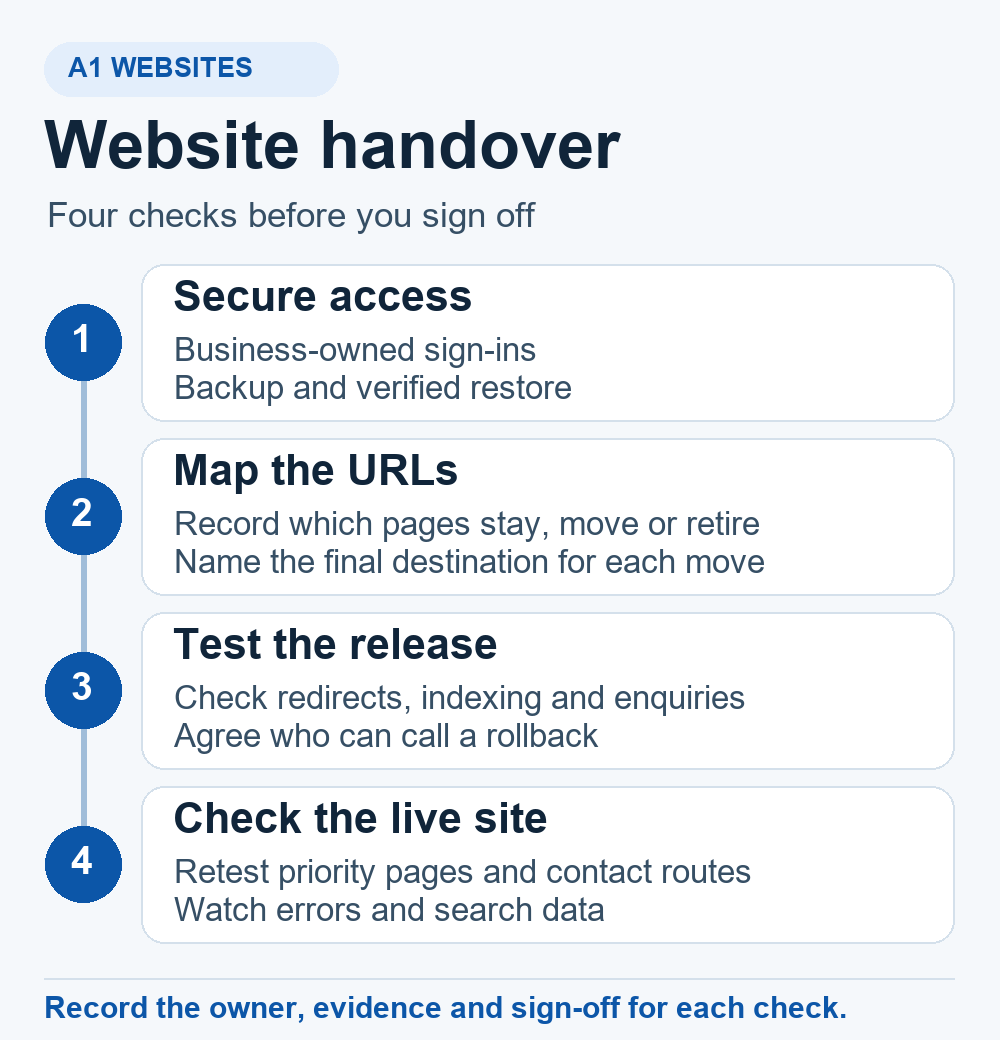
Decide what must change and what can stay
Separate the decision to change supplier from the decision to change the website. Your domain is the public address, your registrar manages the registration, DNS tells browsers and mail services where to connect, and your web host runs the site. These can be with different companies. A new designer can often work with your current domain, hosting and site platform.
- Change the support arrangement. Keep the existing site and give the new provider their own account. Start here if the issue is slow updates, poor communication or access that only the outgoing provider holds.
- Move hosting with the same URLs. Copy and test the site on the new host, confirm HTTPS and email arrangements, then switch the relevant DNS records. Keep the old host available while traffic moves. A hosting switch alone calls for no new page redirects when the public URLs stay the same. See Google’s guide to changing hosting.
- Redesign or move platforms. List which page addresses, content, forms and integrations will change. Include the effort to retain or redirect old URLs in the quote. A familiar page name can still have a different address on a new platform.
Choose between a repair, a redesign and a rebuild
If the service pages work and the problems are slow editing or a broken enquiry form, price those repairs first. If the content is sound but navigation and presentation get in the way, a redesign may keep the same platform and URLs. A rebuild makes sense when the current platform cannot support important workflows, the site cannot be maintained safely, or its structure genuinely needs replacing. Ask the supplier to separate the cost of design from the cost of content migration, redirect testing and launch support. A1’s website cost guide explains what changes the scope of a quote.
Confirm ownership and access before the handover
Ask the outgoing provider for a written handover and a date when their support ends. Have someone in the business sign in and prove they can recover access using a business-controlled email address. A screenshot of an account proves less than a successful sign-in and a second person who knows where to find the recovery instructions.
- Domain and DNS. Confirm the registered domain name holder, registrar, renewal date, billing contact and who controls DNS. Export or record the zone before a change. If nameservers are moving, compare the web and email records, including MX and the existing SPF, DKIM and DMARC records. Test sending and receiving mail after the switch.
- Hosting and site administration. Get separate accounts for the new provider, identify who can download and restore backups, and confirm who pays for hosting, premium themes, plugins and other services. Check whether any licences need replacing when the outgoing provider leaves.
- Measurement and enquiries. Confirm business access to Search Console, Analytics and Tag Manager if used. Record the existing account and property names, the conversions you rely on and where enquiry emails or bookings go. Include any forms, booking tools or integrations the site needs to keep working.
- Files and rights. Request the editable site files or platform exports, original images and design assets you are entitled to use, and a list of third-party licences. Ask which items can be moved and which require a new subscription or permission.
If the business is staying on the same .nz domain, changing the registrar is a separate decision from changing the designer or host. If you choose to change registrar, follow the Domain Name Commission’s .nz transfer guide and handle the authorisation code through a secure channel. If the outgoing provider is listed as the domain name holder, check the change of holder process before assuming a registrar transfer will put the domain in the business’s name.
Record the pages and search signals worth retaining
Before the new design changes anything, save a crawl and the current sitemap. Export the main landing pages from Search Console, then compare those with analytics and the pages staff actually send to customers. Add pages linked from ads, directory listings, other websites and printed material. Include useful downloads and old URLs that already redirect. A sitemap alone can miss addresses people still use.
For each important URL, record its purpose, current response, canonical address, title, main heading, indexability and the content or links the page needs to keep. Add one reason for its priority, such as enquiries, useful links from other websites or a key customer task. That gives the designer a reason to retain a page even when it is absent from the main menu.
Keep useful URLs and map necessary changes
Keep the current address when the new page serves the same purpose and the platform allows it. Where a URL must move, map it directly to the closest relevant final page. Ask for a server-side permanent redirect, usually a 301 or 308, then test the destination for a successful 200 response and the intended content. Update internal links to use the final URL. When a page is genuinely retired and there is no suitable replacement, return 404 or 410 and remove it from internal links and the sitemap. Sending unrelated retired pages to the homepage can confuse visitors and be treated as a soft 404. See Google’s redirect guidance and its guide to moves with URL changes.
| Decision and URL | Expected result and what to check |
|---|---|
Keep/renovations/ | 200 at the same address. Verify that the renovation service details, example work and enquiry button are still useful. |
Move/bathroom-renovations/to /renovations/bathrooms/ | One 301 to a 200 bathroom service page. Check the new page’s self-referencing canonical and update any navigation links. |
Retire/open-day-2019/ | 410 or 404 if there is no useful replacement. Remove old links and confirm the URL is absent from the new sitemap. |
In A1’s own October 2026 website migration, we used a URL map to separate pages to retain from addresses that needed permanent redirects. One public example is /our-templates/, which now leads to /web-design-nelson/. At launch we tested all 66 planned redirect sources and recorded a single 301 followed by a 200 for each. We also checked the preferred URLs, sitemap and delivery of a test enquiry. Those are release checks a business can ask a supplier to show.
Test the replacement site before launch
Use a private test copy, usually called staging. Require login for staging so customer information and unfinished pages stay private. Keep any staging-only noindex or crawl restrictions out of the live deployment. Google needs to be able to crawl a public page to read its noindex directive, so a robots.txt block alone is unsuitable for keeping a copy private. See Google’s explanation of robots.txt.
Ask the incoming designer to run the checks below and return the actual results. A successful homepage preview is only one part of the test.
- Search and content. Compare the priority pages with the baseline. Check the rendered title, main heading, canonical, status and important copy. Check the final sitemap contains the preferred indexable URLs and that public pages can be crawled. Spot-check for staging addresses and links pointing through old redirects. See Google’s canonical guidance and sitemap guidance.
- Redirects and resources. Test every planned redirect where the platform allows it. Record the first response, destination and final response. Check common old variants and links to images or PDFs that customers still need.
- Customer tasks. On a phone, open the menu, find an important service, follow its enquiry link and test a labelled form or booking. Check delivery with the recipient and distinguish test events from real leads. If orders or bookings continue while a copy is being built, agree how new records will be transferred before launch.
For WordPress, have the technical lead take a fresh files-and-database backup and test a restore in a separate environment before the cutover. Ask them to confirm that key pages, uploads and settings are present in the restored copy and that the release operator has permission to restore it. The WordPress backup handbook explains why both parts are needed. A1’s WordPress service page covers platform-specific design and support.
Agree release checks and a rollback decision
Set a launch window when the business owner, website operator and anyone responsible for email or bookings can be reached. Agree which checks must pass, how long the team has to investigate a material issue and who can call a rollback. Save the old files, data, redirects and DNS records. If the site takes bookings or orders, document how to retain any new records created after launch before restoring an earlier database.
- Before switching. The operator confirms the backup and restore route. The business owner approves the URL map and verifies the staging enquiry reaches the right place.
- Immediately after switching. Test the live site from outside the admin session. Check HTTPS, key pages and redirects, the robots and canonical settings, sitemap access and the enquiry journey. Where DNS changed, check old and new hosting while traffic moves.
- If a material check fails. Stop the release and use the agreed decision window. An unavailable site, widespread accidental
noindex, lost enquiries or priority pages going to the wrong destinations need prompt action. If a safe fix is unavailable within the window, restore the known working version or switch back using the agreed plan. Verify the live site and reconcile any orders or enquiries that arrived in the interim.
A1 treated the restore route and post-launch checks as part of its own release decision. Ask for the same evidence when evaluating a website redesign and migration plan. The person who approves the launch should be able to read the test results and understand what would make the team stop.
Monitor the move and give search engines time to recrawl
Keep the pre-launch exports and note the release date. On launch day, confirm the live checks and keep an eye on error logs and enquiries. In the first week, inspect the most valuable URLs in Search Console and check for unexpected indexing or redirect issues. Compare clicks and impressions for the affected landing pages over comparable date ranges and check whether real enquiries still arrive. Compare like with like if the business has seasonal peaks or has changed its advertising.
Use the URL Inspection tool to distinguish what Google has indexed from what its live test can access. If the domain or subdomain changes, review Google’s Change of Address requirements after the move and redirects are in place. For a designer switch, hosting move with the same URLs, or path changes on the same domain, that tool is unnecessary.
Google generally recommends keeping migration redirects live for at least a year. Keep useful redirects longer where old links or bookmarks still send people to them. Search results can fluctuate as Google recrawls changed pages, and recovery time varies by site and change. Investigate concrete problems such as broken redirects, blocked URLs and lost content while the search data settles. For help diagnosing an issue beyond the launch checks, see A1’s SEO preservation and audit services.
Secure the accounts after the handover
Once the business has confirmed its own access and the agreed support window has ended, remove the outgoing provider’s unnecessary logins, delegated permissions and sessions. Check the registrar, hosting, WordPress and measurement tools. Keep any temporary support access limited and give it an end date.
Put account ownership, renewal notices and billing in the business’s name. Set up multi-factor authentication (MFA) with business-controlled recovery methods and store recovery codes securely. Confirm that a second authorised person knows how to recover access. List any third-party integrations such as form delivery, bookings and payments. Move them to business-controlled accounts, test them with the replacement credentials, then revoke the old connections or keys. See the New Zealand NCSC’s guide to protecting business accounts with 2FA.
Put the handover in writing
For each task, record the owner, due date, expected result and evidence. Start with the domain and hosting access, the backup and restore, the priority pages and redirect map, and the live enquiry test. Ask the supplier to include who monitors the site after launch and how you contact them if one of those checks fails.
If you are comparing proposals, send Marcus your current website URL, tell him what is driving the handover and name the pages or enquiries you most need to protect. That gives you a concrete starting point for deciding which work belongs in the brief.